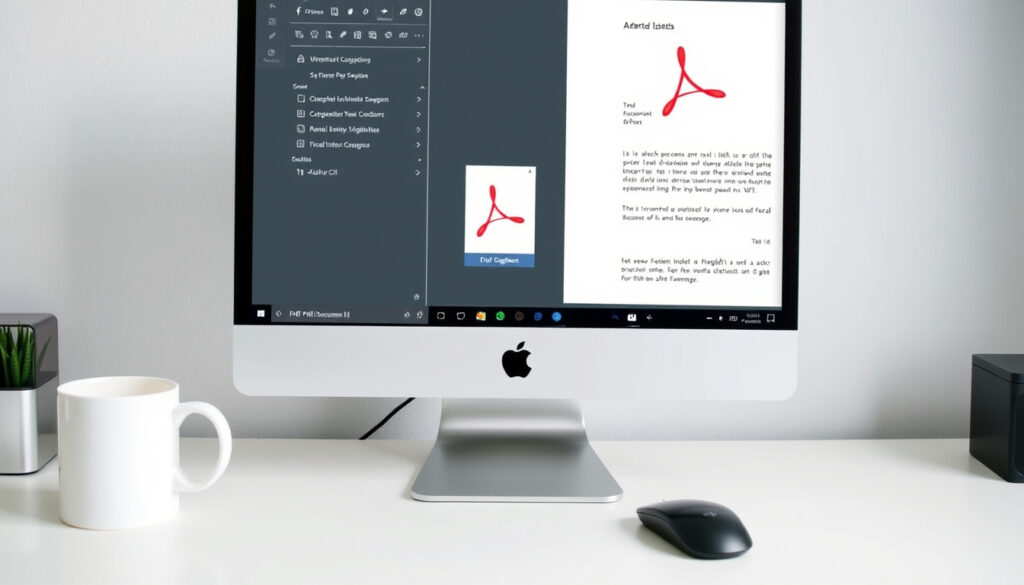
How to Edit a PDF: Free Online Tools and Step-by-Step Guide
You’ve got a PDF that needs a quick fix — maybe a typo, a form to fill, or a signature to add. The good news: you don’t need pricey software to get it done. Plenty of free tools — online editors, your existing word processor, even the apps already on your computer — can handle the job.
Number of top free online PDF editors: 4 (Adobe, Canva, iLovePDF, Smallpdf) · PDF editing methods: Three (software, online, conversion) · File format introduced: 1993 by Adobe · Common platforms: Windows, Mac, iOS, Android
Quick snapshot
- Adobe Acrobat Pro offers full editing of text, images, and pages (Adobe Acrobat)
- Microsoft Word can open PDFs and convert them to editable .docx files (YouTube: How to edit a PDF in Word)
- pdfFiller lets you download edited PDFs as Word, Excel, or PowerPoint files (pdfFiller)
- SimplePDF works in browser with no account required and no watermarks (SimplePDF)
Six facts that set the stage for choosing a PDF editing method.
| Fact | Detail |
|---|---|
| PDF introduced | 1993 by Adobe Systems (Wikipedia) |
| Free online editor without signup | SimplePDF works with no account and no watermarks (SimplePDF) |
| Canva PDF editor imports | Supports Google Drive, OneDrive, and Dropbox imports (Canva) |
| pdfFiller export options | Download as Word, Excel, PowerPoint, or JPG (pdfFiller) |
| DocFly free limit | 3 files per month for free users (DocFly) |
| Microsoft Word PDF conversion | Opens and converts PDFs to editable Word docs (YouTube: How to edit a PDF in Word) |
Free online editors save you money, but they can’t match the power of Acrobat Pro for heavy editing. For most quick fixes, they’re more than enough.
How do I edit an already existing PDF?
Editing a PDF isn’t as locked down as it seems. Three practical routes exist: use dedicated software, try an online editor, or convert the file to another format, edit, and save back as PDF. Each has trade-offs in cost, features, and convenience.
What does editing a PDF entail?
- Text changes: Modify existing text, add new text, or delete words. Adobe Acrobat Pro allows full text editing (Adobe Acrobat).
- Image and page management: Insert, replace, or remove images and reorder pages. pdfFiller’s pages menu lets you arrange, rotate, duplicate, or delete pages (pdfFiller).
- Annotations and signatures: Add comments, highlights, and digital signatures. Canva supports annotations and signatures in its free editor (Canva).
Can I edit a scanned PDF?
Yes, but only after OCR (optical character recognition). Modern OCR tools reach 98–99% accuracy on clean scans. Adobe Acrobat Pro includes built-in OCR; free alternatives like SimplePDF do not, so scanned PDFs may appear as images in those tools.
The implication: if your PDF is a scan, you’ll need software or a converter that supports OCR — this rules out many free online editors.
What file formats can a PDF be converted to for editing?
- Microsoft Word (.docx) — most common, preserves basic layout (YouTube: How to edit a PDF in Word).
- Excel (.xlsx) — pdfFiller offers download as Excel (pdfFiller).
- PowerPoint (.pptx) — same source.
- Image formats (JPG, PNG) — Canva can export PDF as JPG or PNG (Canva).
What this means: conversion is flexible, but complex layouts like tables or columns may shift. Always check the output before finalizing.
How do I edit a PDF if I don’t have Adobe?
Adobe Acrobat Pro is the industry standard, but it costs money. Fortunately, free alternatives — from browser-based editors to your word processor — cover most common editing tasks.
What free online PDF editors are available?
- Canva’s PDF editor is free and available in browser and desktop app (Canva). It imports from Google Drive, OneDrive, and Dropbox.
- SimplePDF offers editing with no account and no watermarks (SimplePDF).
- DocFly gives free users 3 files per month to create, edit, or convert (DocFly).
- pdfFiller allows editing text, adding signatures, and downloading in multiple formats (pdfFiller).
Can I use Microsoft Word to edit a PDF?
Yes. On Windows 10 and later or Mac, open the PDF directly in Word. Word automatically converts it to an editable .docx file. After editing, save as PDF. The conversion may affect formatting, so review the document carefully (YouTube: How to edit a PDF in Word).
Is there a free desktop PDF editor?
- Adobe’s free online editor (requires sign-in) lets you add comments, highlights, and text boxes, but not full text editing (Adobe Acrobat).
- For full desktop editing without paying, Word is your best bet if you already have Office.
The pattern: free tools handle light edits well; for heavy lifting, you either pay or use conversion.
What are three ways a PDF can be edited?
Using dedicated PDF editing software
- Adobe Acrobat Pro offers the most control: edit text, images, pages, forms, and add signatures (Adobe Acrobat).
- Paid but comprehensive; available for Windows and Mac.
Using online PDF editors
- Canva, SimplePDF, pdfFiller, and DocFly all work in browser with no installation.
- Free tiers have limits: file size (often 100 MB), number of edits, or monthly file cap (e.g., DocFly: 3 files) (DocFly).
- Suitable for annotation, simple text edits, and form filling.
Converting PDF to an editable format
- Microsoft Word converts PDF to Word (.docx) automatically (YouTube: How to edit a PDF in Word).
- pdfFiller can export as Word, Excel, PowerPoint, or JPG (pdfFiller).
- After editing, save back to PDF. Watch for layout shifts.
The trade-off: dedicated software gives the most power, online editors are fastest for light tasks, and conversion works best for heavy content changes but risks formatting loss.
Can I convert a PDF to editable?
Yes, and it’s often the simplest way to make substantial changes. Conversion works well for text-heavy PDFs; complex designs may require more care.
How to convert a PDF to Word for editing
- Open the PDF in Microsoft Word (Windows/Mac) — it will convert automatically. Edit as needed, then save as PDF (YouTube: How to edit a PDF in Word).
- Online tools like pdfFiller also support Word export (pdfFiller).
How to convert a PDF to Excel or PowerPoint
- pdfFiller allows download as Excel or PowerPoint (pdfFiller). Canva exports PDF as JPG, PNG, or SVG (Canva).
- Use Excel when the PDF contains tables; conversion accuracy varies.
What is OCR and when is it needed?
- OCR (Optical Character Recognition) extracts text from scanned documents or images.
- Adobe Acrobat Pro includes OCR. Free online editors generally do not, so scanned PDFs may not be editable without conversion.
- Modern OCR achieves 98–99% accuracy on clean typed text.
The catch: without OCR, scanned PDFs remain picture-based and cannot be directly edited. For those, you’ll need either an OCR-capable tool or retype the content.
Converting a PDF to Word often disrupts tables, columns, and embedded fonts. Always proofread the converted document before finalizing.
Can you manually edit a PDF?
Manual editing — directly modifying the original content — is limited without paid software. But you can annotate, add text, and sign documents using built-in OS tools.
How to edit a PDF on Mac with Preview
- Preview (built-in on Mac) allows adding text, shapes, signatures, and annotations. You can also highlight, underline, and strike through text.
- Limitations: Cannot edit existing text or rearrange pages.
How to edit a PDF on Windows without extra software
- Microsoft Edge browser can fill forms, highlight text, and add notes. Chrome has similar functionality.
- Again, no direct text editing of the PDF content.
Limitations of manual editing
- You cannot fix typos or change the original content.
- For anything beyond annotations, use an online editor, software, or conversion.
Why this matters: if you only need to add a signature or a note, built-in tools work fine. To actually rewrite a paragraph, you’ll need one of the other methods.
Four methods, one pattern: the best choice depends on how much control you need and how often you edit PDFs.
| Feature | Adobe Acrobat Pro | Canva (Free) | SimplePDF | Word Conversion |
|---|---|---|---|---|
| Price | Paid (~$20/mo) (Adobe) | Free (with limits) (Canva) | Free (SimplePDF) | Free (with Office) (YouTube) |
| Edit existing text | Yes | Yes (basic) | Yes | Yes (after conversion) |
| Works offline | Yes | Web app (needs connection) but also desktop app | No (browser only) | Yes (Word desktop) |
| Form filling & signatures | Yes | Yes | No | Limited |
How to edit a PDF step by step
- Choose your method: For full control, use Adobe Acrobat Pro. For quick online editing, try Canva or SimplePDF. For heavy text changes, convert to Word.
- Open your file: Upload to the online tool or open in desktop software. Word users: File > Open > select PDF.
- Make edits: Edit text, images, or add annotations using the tool’s interface. For conversion, make changes in Word then save as PDF.
- Review and download: Check for formatting issues, then download or save as PDF. Online tools often have a “Download” button.
- Keep a backup: Save an unedited copy of the original PDF in case something goes wrong.
Clarity check: what we know and what remains unclear
Confirmed facts
- PDFs can be edited using dedicated software, online tools, or format conversion.
- Adobe Acrobat Pro is the industry standard for full editing.
- Microsoft Word can open and convert PDFs on Windows and Mac.
- Online editors are free but have file size and feature limits.
- SimplePDF operates with no account and no watermarks.
- DocFly limits free users to 3 files per month.
What’s unclear
- Exactly how many users rely on free vs paid tools annually.
- Long-term accuracy of OCR for handwritten text.
- Security risks of uploading sensitive PDFs to online editors.
- Whether free online editors store uploaded files permanently.
- Which tools work reliably offline.
Adobe Acrobat Pro allows you to edit text, images, and pages in PDFs, including changes to fonts, colors, and layout.
Adobe Acrobat documentation
Microsoft Word can open PDF files and convert them to editable Word documents, allowing you to make changes before saving them back to PDF.
YouTube tutorial: How to edit a PDF in Word
pdfFiller lets you upload a PDF, edit text, add form fields and signatures, and download as Word, Excel, or JPG.
pdfFiller
For anyone editing a PDF on a budget, the smart move is to start free: use Microsoft Word if you have it, or an online editor like SimplePDF for quick and dirty changes. If you edit PDFs regularly and need reliability, the paid Adobe Acrobat Pro remains the gold standard.
For more hands-on guides, check out How to Build a PC – 2025 Beginner Step-by-Step Guide and Password Generator 16 Characters – Guide to Strong Security.
For a comprehensive comparison of free online PDF editing tools, check out this detailed guide.
Frequently asked questions
Can I edit a PDF on my phone?
Yes. Mobile apps like Adobe Acrobat Reader (iOS/Android) allow limited editing. Canva also offers mobile editing. Free online editors may not support mobile browsers fully.
What is the best free PDF editor?
It depends on your needs. Canva is great for design-heavy PDFs; SimplePDF for no-fuss text edits; DocFly for conversion. All are free with limitations.
How do I edit a PDF in Google Drive?
Upload the PDF to Google Drive, right-click, select “Open with” and choose Google Docs. It will convert to an editable document. After editing, download as PDF.
Is it safe to use online PDF editors?
Use caution with sensitive documents. Check the privacy policy of the service. SimplePDF emphasizes no upload storage; others like pdfFiller offer audit trails. For confidential files, prefer offline tools like Word or LibreOffice.
How do I edit a PDF without losing formatting?
Use dedicated PDF software like Adobe Acrobat Pro, which preserves layout best. Conversion to Word may shift formatting; always preview before saving.
Can I edit a PDF on a Chromebook?
Yes. Online editors like Canva or SimplePDF work in Chrome browser. You can also use Google Docs after converting the PDF.
How do I add a signature to a PDF?
In Adobe Acrobat online, use the fill & sign tool. Canva and pdfFiller also support signatures. Mac Preview has a built-in signature tool.
What is the difference between editing and annotating a PDF?
Editing changes the actual content (text, images). Annotating adds comments, highlights, or notes without altering the original content. Most free tools only annotate.
More related posts
 Rupert Grint: Life After Harry Potter, Net Worth & Friendship
 Current Time in Nigeria: Exact WAT UTC+1 & Key Facts
 Apartments for Sale Vancouver – Complete 2025 Guide
 Melissa Gilbert’s Misophonia, Teeth, Finances, and Life Today
 Andrew Cuomo: From Governor to Mayoral Comeback Bid
 How to Get Rid of Bags Under Eyes: Fast Remedies & Treatments
 Grand Prix Cycliste Quebec – Route, Results, History and 2025 Preview
 OAS & CPP Changes 2025 – Key Rates and Earnings Ceilings
